How to Create a Circle in Minecraft Using a Block Blueprint
Learn how to create a circle in Minecraft with a 21 × 21 blueprint: place 56 blocks, leave the correct gaps, and check mirrored rows.
On this page
The blueprint’s flat block shape shows how to create a circle in Minecraft. Manual placement of each individual square turns the grid into an approximation of a two-dimensional circle. This plan documents the 21 × 21 thin edge with its corresponding construction blocks, and manual placement. In this case, there are 56 occupied squares.
Choose the Diameter and Center
You’ll need to decide upon the diameter and center location of your circle. While the exact size of your footprint depends on how large you want it, it’s easier to use an odd number for the diameter (e.g., 21) since that makes calculating the center easy (the middle block). For example, a 21-block-wide footprint will have the center block at row 11, column 11.
I’ve chosen to align my planned footprint around a matching center block, or the gap between four blocks when I choose even diameters. As a result, I also used dashed lines to represent the central guides, as there are no construction blocks placed here.
Align the Blueprint Rows and Columns
This plan assumes that you’ll be placing your blocks starting at the top-left corner of the blueprint. The “row 1” of the blueprint will become the top of your circle, and the left side will be “column 1.” I’m using the fixed ground directions to help determine which direction I should count to place each block: the blueprint’s top will become the top of your circle, while the blueprint’s left becomes the left of your circle.
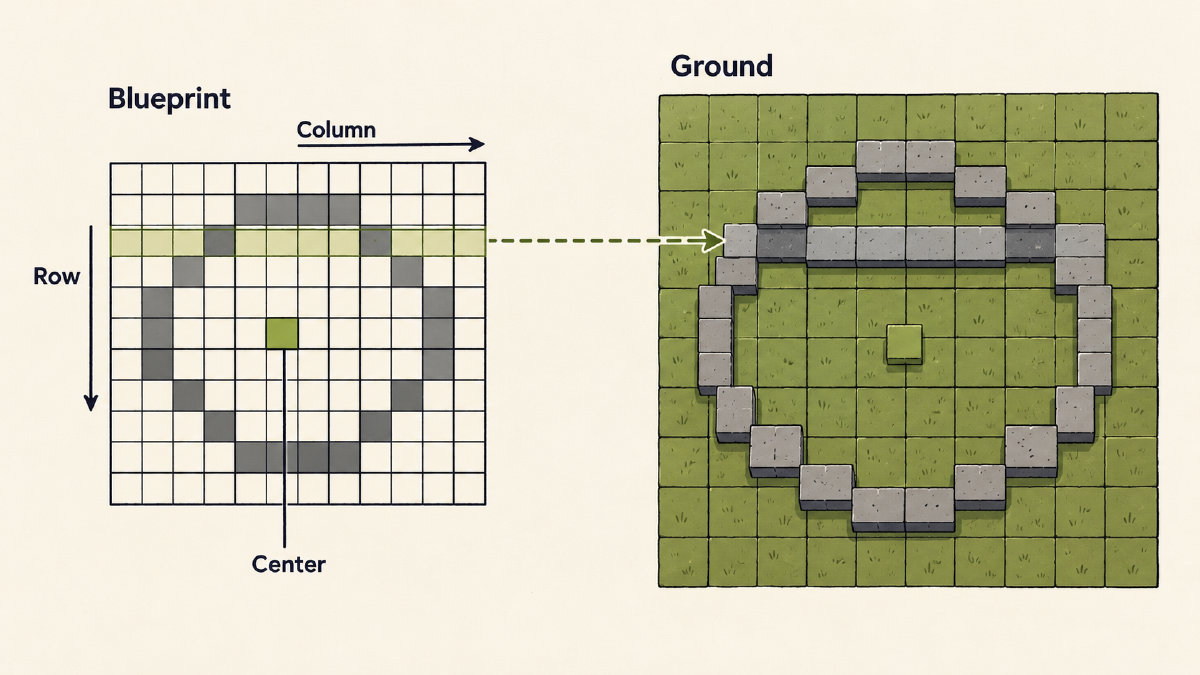
It’s important to keep in mind that the labels for the blueprint itself (the rows and columns) do not correspond directly to Minecraft’s world coordinates. That can be confusing; if you’re following the instructions precisely, you shouldn’t run into any issues.
Place Blocks Row by Row
Place all the blocks in the numbered ranges below separately from each other, leaving every unlisted position empty. Each range will be separated, with spaces in between.
Row 1
Columns 8–14
7 blocks
Row 2
Columns 6–7 and 15–16
4 blocks
Row 3
Columns 5 and 17
2 blocks
Row 4
Columns 4 and 18
2 blocks
Row 5
Columns 3 and 19
2 blocks
Rows 6–7
Columns 2 and 20
2 blocks per row
Rows 8–14
Columns 1 and 21
2 blocks per row
Row 15
Columns 2 and 20
2 blocks
Row 16
Columns 2 and 20
2 blocks
Row 17
Columns 3 and 19
2 blocks
Row 18
Columns 4 and 18
2 blocks
Row 19
Columns 5 and 17
2 blocks
Row 20
Columns 6–7 and 15–16
4 blocks
Row 21
Columns 8–14
7 blocks
Check the Completed Outline
Before you begin placing blocks, double-check that you’ve followed these instructions carefully, then check each row before advancing to the next one. If you find that you haven’t followed the instructions correctly, you’ll need to adjust accordingly.
Compare what you’ve placed in a completed row against what was listed above for that row, and only mark it as complete once you’ve confirmed it’s correct. Any errors in placing blocks will cause your final outline to be incorrect.
These checks were derived directly from the placements outlined in this plan. You’ll see that paired mirror columns add up to 22, and row r will match row 22 minus r.
Finally, the finished outline has 56 occupied squares. Note that I excluded the temporary markers you’ll add during the process from the construction total.
Thin Thick and Filled Outlines
The type of outline used in this article is known as a “thin” edge. It uses four neighbors to form an edge. A broader eight-neighbor edge, often referred to as a thick edge, would appear more rounded than the thin edge, but it doesn’t require selecting different wall thicknesses. Finally, there’s the filled style, where the entire interior of the circle is covered with blocks.
Changing your outline style will change your plan. The thin edge is just the first of several different outlines, each requiring their own specific row instructions and material counts. The numbers I’ve documented above apply specifically to the 21 × 21 thin plan. When you create your circle, simply switch out the rows for the appropriate plan.
Save Export and Share the Blueprint
Keep this plan open and available for future reference. Save the progress so that it can be retained across browser sessions. If changes are made to the plan, they should clear your progress after you confirm that they’re okay. Also, sharing your plans should allow others to copy them without copying your progress, which isn’t exported anywhere else.
If you wish, export the blueprint as a PNG for a second-screen reference, an SVG file as a vector reference, or print the selected blueprint. Be sure to include the thin blueprints, the numbered instructions, the material total, and the center guides. When you share a link, it’s helpful to make it clear what the dimensions and outline is that you’re sharing, too.
The blueprint exports won’t show your row progress, though.
Related guides
Explore circle templates or return to all guides.